MiniMax H3 Timeline
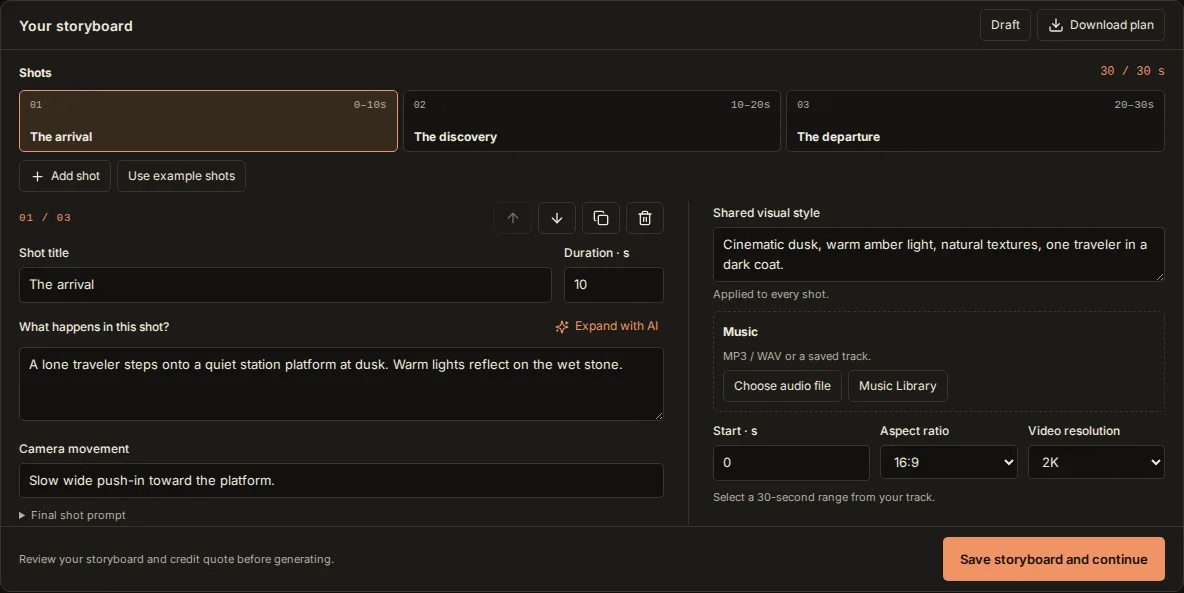
Plan 30 seconds for free. Add music, review your quote, then generate.
Your storyboard
Credits are estimated for 30 seconds. Confirm the final cost before generation.
What does MiniMax H3 Timeline control?
This planner separates preparation from paid production. Understanding these three activities helps you choose suitable tools without expecting every editor to perform identical work.
Prompt planning
MiniMax H3 Timeline begins with written directions: describe subjects, movement, framing, lighting. Duration expresses intended pacing. Individual requests still need review because text cannot guarantee frame-exact action. MiniMax provides model capabilities; this independent planner organizes your instructions before submission.
Continued generation
Some external workflows condition another segment using existing footage or bridge separate sections. MiniMax H3 Timeline does not expose those operations. Check compatibility before choosing continuation tools. Successful execution alone cannot establish matching faces, consistent surroundings, or convincing motion across joins.
Finished-clip editing
Editing arranges footage already produced. MiniMax H3 Timeline hands your sequence into project review, where successful shots can proceed toward MP4 assembly. Trimming cannot invent missing movement. Assess composition first, then decide whether regeneration or a deliberate cut better serves your story.
Compare MiniMax H3 Timeline with ComfyUI workflows
This planner works in your browser. These separately maintained ComfyUI projects require their own compatible environments. Linked documentation explains different approaches; inclusion here does not imply output-quality testing, endorsement, or integration.
| Creative goal | External project | Approach and boundaries |
|---|---|---|
Continue sequences shot by shot | ContinuityRead Continuity documentation | Continuity organizes shot generation through unified workflow nodes. Compared with MiniMax H3 Timeline, it addresses local workflow orchestration. Follow its current installation instructions instead of assuming browser plans can be imported. Review continuity visually. Matching dependencies does not guarantee seamless long takes. |
Compile structured directions | MiniMaxDirectorRead MiniMaxDirector documentation | MiniMaxDirector arranges scene descriptions, camera movement, sound cues into structured prompts inside ComfyUI. MiniMax H3 Timeline instead preserves editable shots before project handoff. Both require realistic expectations about how precisely generated motion follows written timing. Confirm supported ComfyUI versions, model requirements, plus author instructions before installation. |
Extend or assemble footage | OBVPM TimelineRead OBVPM Timeline documentation | OBVPM Timeline documents continuation, bridging, loop-related operations. MiniMax H3 Timeline does not import these workflows. Companion nodes, context files, models, installed patches can affect behavior, so reproduce the supplied example before adapting unfamiliar graphs. Treat compatibility details as environment-specific; consult author troubleshooting notes. |
MiniMax H3 Timeline example: three ten-second shots
This written example illustrates a thirty-second sequence, not verified generated footage. This planner sends separate shots through project review. It does not submit one continuous thirty-second request or promise uninterrupted camera motion.
Rain-lit street
Introduce our traveler with clear screen direction. MiniMax H3 Timeline can carry these instructions into your private project without substituting an automatic storyboard.
Check the join
Review wardrobe, travel direction, camera height, lighting before accepting this opening. Choose an ending with room for a deliberate cut.
Suggested prompt
An adult traveler wearing a dark coat, red scarf, worn leather boots walks along rain-soaked pavement at night. Frame from behind at shoulder height. Follow slowly, maintaining distance. Warm shop windows reflect across puddles; empty buildings recede into soft mist. Keep movement restrained, leaving clear space ahead.
Prepare your MiniMax H3 Timeline project
- 01
Choose one clear moment
MiniMax H3 Timeline currently covers thirty seconds. Select a musical passage with a useful beginning, development, ending. Pick an integer start position with sufficient audio remaining. Listen for phrasing rather than assuming automatic beat detection or guaranteed lip synchronization.
- 02
Write observable actions
Give each MiniMax H3 Timeline shot one main event. Specify who moves, where movement begins, how framing responds. Keep recurring appearance details consistent. Shared style supplements descriptions; it cannot enforce perfect character identity. Review the final prompt before continuing.
- 03
Check timing and sources
MiniMax H3 Timeline accepts two through six shots, each lasting five through fifteen whole seconds. Their sum must equal thirty. Choose local audio or a ready library track. Selecting a local file does not upload it; saving after sign-in begins that work.
- 04
Approve before spending
MiniMax H3 Timeline transfers ordering, durations, prompts into an existing project workspace. Inspect the saved sequence, approve it, request an actual quote. Generation requires explicit confirmation. MiniMax processing is separate from free planning; credit costs come from the quoted configuration.
From MiniMax H3 Timeline to finished delivery
This planner is an independent entry point into MiniMaxMusic. Preparation stays separate from rendering. External ComfyUI repositories remain separate products; no third-party workflow import is implied. MiniMax model documentation supplies technical context, while your project workspace supplies actionable pricing and review.
Available here
- Arrange thirty seconds, choose music, copy prompts, download your written plan.
- Preserve ordering, durations, descriptions when saving into a private project.
- Review quoted credits, inspect generated results, continue toward MP4 export.
Outside this planner
- Run ComfyUI packages or import their workflow files.
- Extend, prepend, bridge, or regenerate existing footage locally.
- Guarantee frame-exact action, locked identity, seamless motion, or exact beat alignment.
Planning in MiniMax H3 Timeline is free. Video generation needs an account plus credits; review your actual quote before confirming.
MiniMax H3 Timeline questions
Is MiniMax H3 Timeline an official product?
No. This planner is an independent planner. MiniMax maintains the model repository linked below; third-party authors maintain their own ComfyUI packages. Names describe technical context, not affiliation. Read each source before installing software or relying on a feature.
Does MiniMax H3 Timeline need ComfyUI?
No local ComfyUI installation is required. This planner uses this site’s existing project workflow after saving. External tools listed above need compatible local setups. Downloaded planning text is a readable storyboard, not an executable node graph or installable workflow.
Can MiniMax H3 Timeline create one continuous take?
This planner prepares separate shots for later assembly. This planner does not promise continuous camera motion, exact beat alignment, or automatically matched characters. Write intentional transitions, review individual clips, then judge whether your actual results support the planned sequence.
What happens after saving MiniMax H3 Timeline?
Your saved shots open in a project workspace for review, approval, quoting, generation, export. This planner does not charge for arranging text. Signing in restores your draft without automatically rendering. If you revise a previously saved plan, create another project rather than expecting quoted work to change.
Choose your next production step
Continue from MiniMax H3 Timeline with guidance matching your source material and intended output.
MiniMax sources and workflow documentation
These descriptions summarize linked documentation, not hands-on quality benchmarks. Requirements can change. This planner offers a planning example, not evidence of a completed render. Consult original maintainers for installation details, supported models, migration notes, or troubleshooting.
Documentation checked: