Lyrics Video Maker
Use this free lyrics video maker to turn your audio and lyrics into a video. Import a song, adjust the timing and style, then sign in to export.
Restoring local draft…
Audio: 50 MiB maximum · 300 seconds maximum · Image: 15 MiB maximum
Starting times are evenly estimated. Adjust every line by listening; this is not automatic synchronization.
Local preview
About this preview
This is a local preview. Browser rendering keeps files on this device; if it fails or is unsupported, available server export uploads your files.
Preview fonts may differ by browser. Export uses bundled Noto fonts and 30 fps timing; review the finished video before sharing.
Checking export availability…
How to use the lyrics video maker in 3 steps
1. Import your audio
Choose a local MP3 or WAV file, or sign in to select a song from your library. Play the track to check it before adding lyrics. The editor accepts audio up to 5 minutes and 50 MiB.
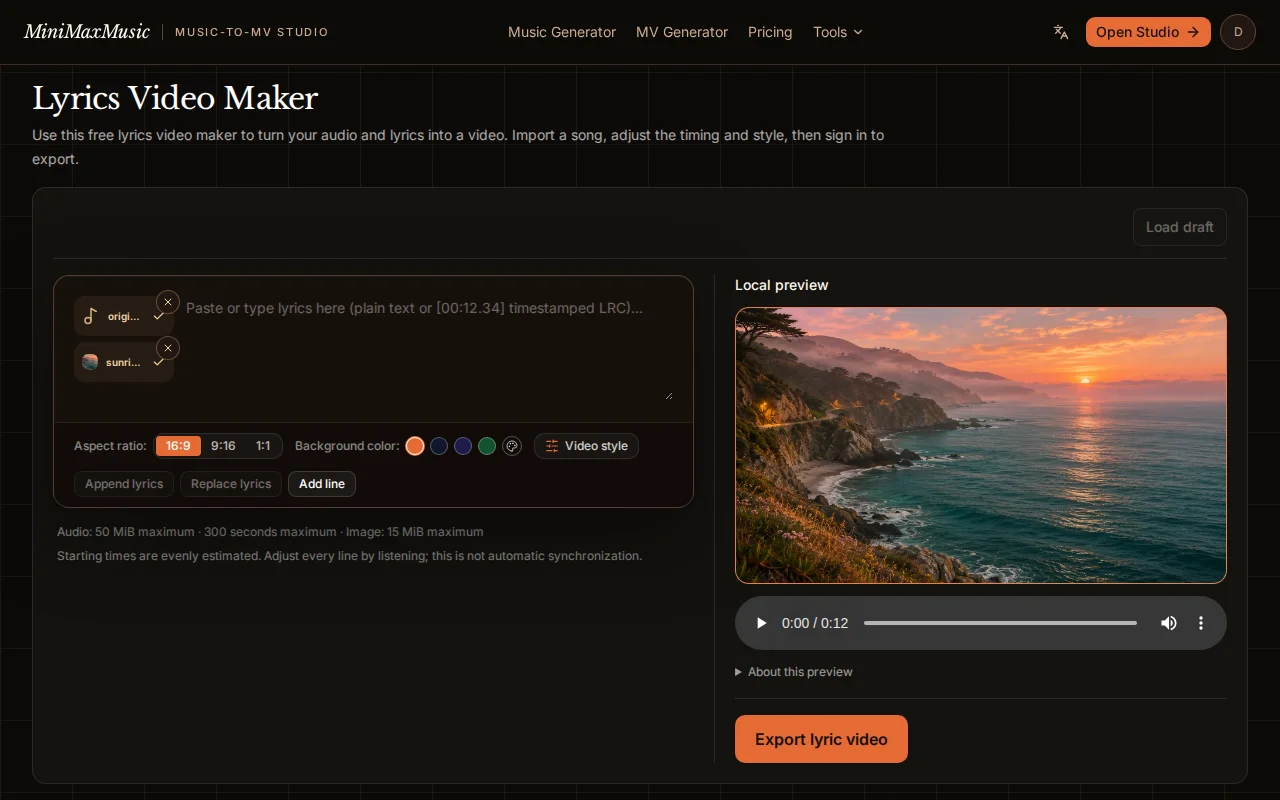
Demonstration audio and a WebP background imported. 2. Add lyrics and set the style
Paste your lyrics, one line at a time, then add them to the timeline. Initial timings are estimates: listen and adjust each line’s start and end. Choose a background color or image, a frame shape, and your font settings.
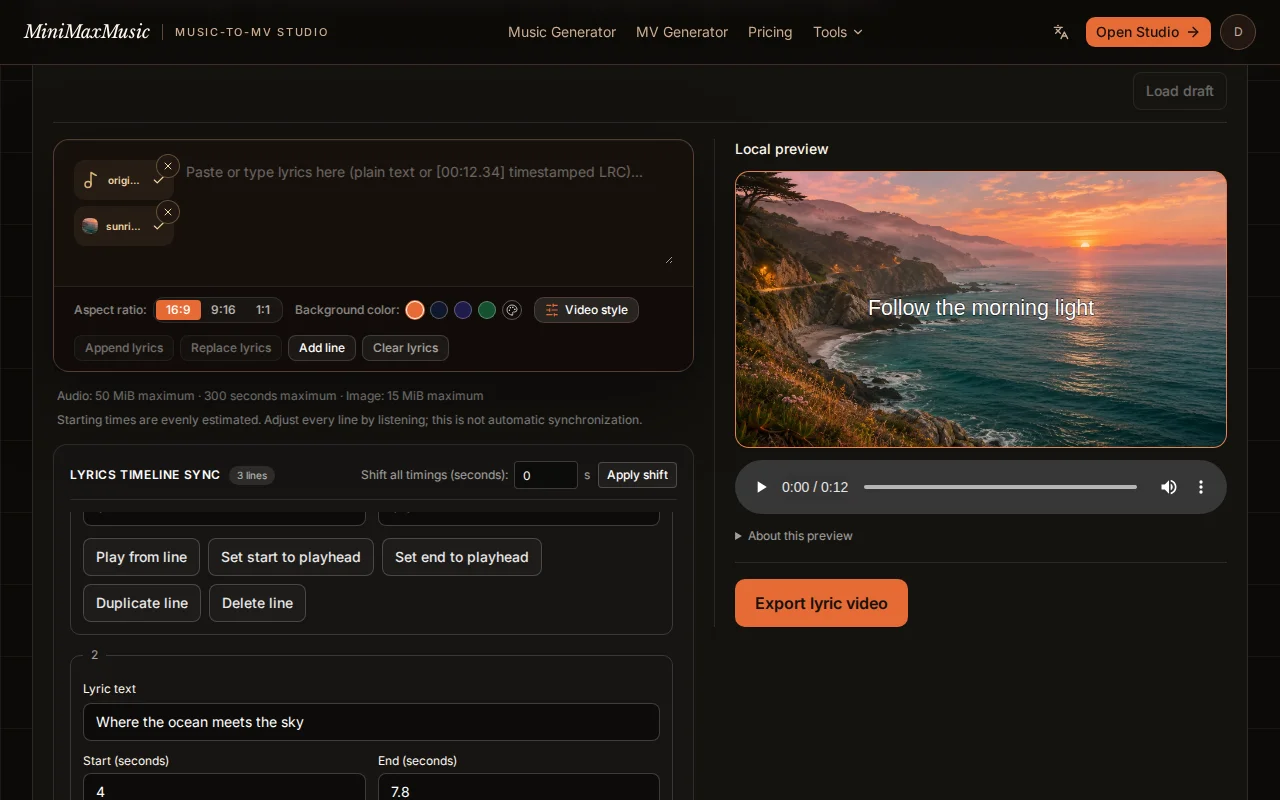
Timing three sample lyric lines over a sunrise image. 3. Preview and export
Check the words against the audio, then sign in and select Export lyric video. Keep the page open while it records. Download the MP4 or WebM file your browser produces and play it once before sharing.
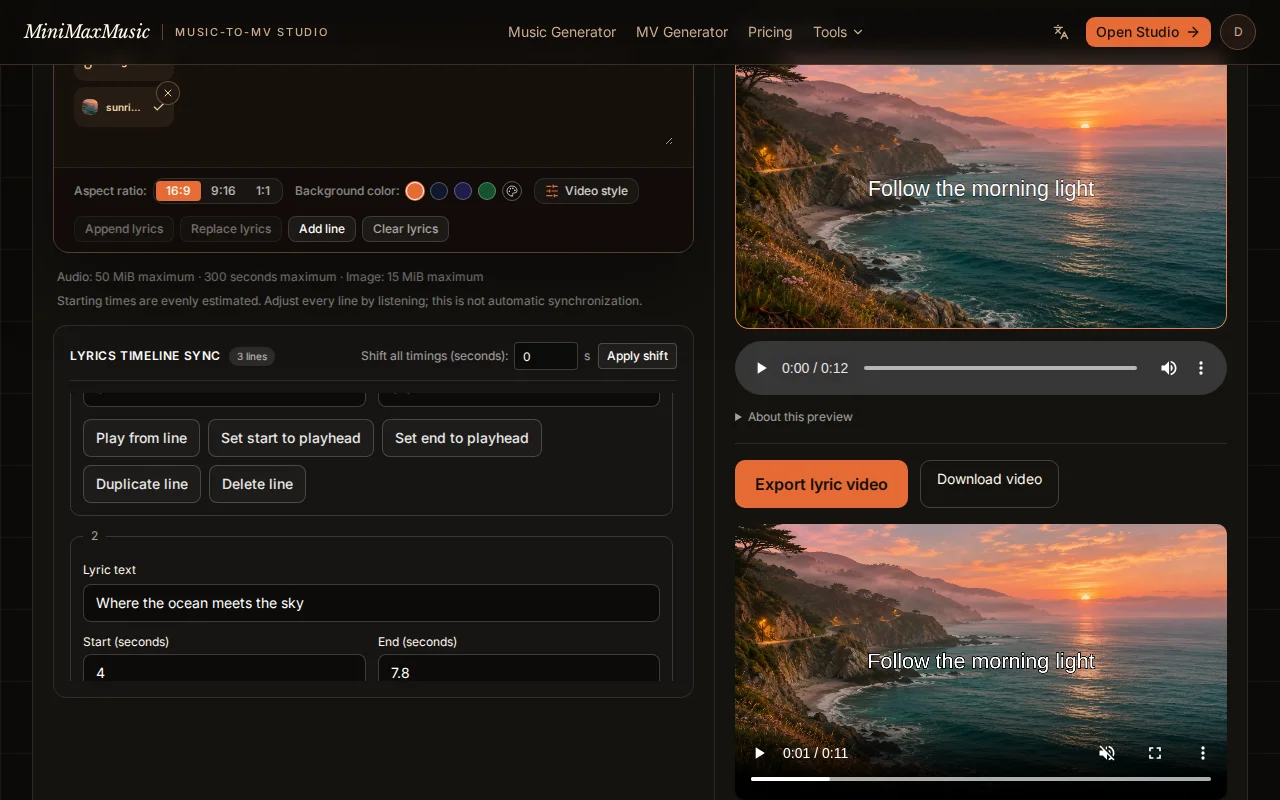
A finished coastal demo with lyrics and download controls.
Examples
These two clips show what you can export with this lyrics video maker. Both combine a generated background image with an original instrumental melody and manually timed sample lyrics. Compare the landscape and portrait layouts; the words were supplied, not transcribed from audio.
Morning light · 16:9
Centered lyrics over a sunrise coastline, framed for a widescreen player.
City lights · 9:16
Three lyric lines over a rain-lit city street, composed for a vertical frame.
Supported formats & limits
- Audio input
- MP3 or WAV, up to 50 MiB and 5 minutes. Files must be playable in your browser.
- Backgrounds & layout
- A solid color or a JPG, PNG, or WebP image up to 15 MiB. Choose 16:9, 9:16, or 1:1; adjust the font, size, color, outline, and text position.
- Lyrics & timing
- Paste plain text and adjust each line’s timing manually. The tool does not transcribe vocals. Initial timestamps need checking against your track.
- Export & account
- The lyrics video maker is free to use, including export, with no generation credits required. You can start editing without an account; sign in to export. Local output is MP4 or WebM depending on browser support. If local export fails, an available server fallback may upload your files after a notice.
How to align each lyric line by hand
Paste one phrase per line, then add the text to the editor. The first timestamps divide the available audio time evenly; they do not detect singing, pauses, or beats. Play the track from the beginning and listen for the first word of each phrase. Enter that moment in the line’s start field, in seconds, then set its end to the point where the phrase should disappear. For example, a line might start at 12.4 and end at 16.8 seconds. Leave a gap when the vocals pause rather than stretching every line to fill the silence.
Work through a verse before checking the chorus. Seek back a few seconds in the audio player and watch the preview as each phrase changes. A line’s end must be later than its start, stay within the track, and not overlap another line. Correct any timing warnings before exporting. If a phrase is too long to read comfortably, split it into shorter lines and give each its own interval. The preview shows one line at a time; it does not highlight individual words. Listen through the whole track after your final timing edits.
Choose a background that fits the frame
Prepare a landscape image at 1920 × 1080 for 16:9, a portrait image at 1080 × 1920 for 9:16, or a square image at 1080 × 1080 for 1:1. These are suggested source-image sizes, not a promise of export resolution. The background fills the frame and is cropped around its center when the image shape differs from the selected ratio. A wide photograph used in a vertical video may lose most of its left and right edges. Crop a separate portrait version before importing if those details matter.
Keep faces, logos, and other important details away from the edges and from the area where your lyrics will appear. Check the top, center, and bottom text positions against the actual image. White text with a dark outline can help over a busy photograph; a solid color is another option when the words are hard to read. Review the smallest intended screen, especially for vertical clips. Changing the frame shape can change line wrapping, so check the longest lyric again after switching ratios. Background files must be JPG, PNG, or WebP and no larger than 15 MiB.
What to check when an export fails
First confirm that the imported audio plays, all lyric timings are valid, and you are signed in. Keep the page open while the browser records the video; do not close the tab or lock your phone during the process. If recording fails, read the message beside the export controls. When the server fallback is available, the editor may switch to it and upload the audio and background after displaying a notice. Local editing therefore does not guarantee that every export remains on your device.
If no export completes, keep a copy of your lyrics and original files before changing browsers. Try a shorter audio file within the size limit, a smaller background image, or a desktop browser with recording support. These checks can help isolate the problem but do not guarantee compatibility with every device. Local output may be MP4 or WebM, depending on the browser. Use the file type that was actually downloaded; renaming a WebM extension to MP4 does not convert the video. Play the downloaded file and check its sound, first line, and final line before sharing it.
Which audio files can you import?
The accepted audio formats are MP3 (.mp3) and WAV (.wav). Choose MP3 when you need a smaller file, or WAV when your source recording is already in that format and fits the limit. Both must be nonempty, no larger than 50 MiB, no longer than five minutes, and decodable by the browser. A WAV filename alone does not guarantee that its internal encoding will play. Test the file with the editor’s audio controls before spending time on lyric timing.
M4A, AAC, FLAC, OGG, and video files are not accepted by this audio input. Convert them to a real MP3 or WAV file in an audio editor before importing; changing the filename extension is not enough. The tool also needs the audio file itself, not a streaming-service link. For a longer song, make a shorter copy first and time the lyrics against that exact copy, since trimming the beginning shifts every cue. Importing music does not supply a transcript: paste the words yourself and check that you have permission to use the recording and lyrics.
Lyric video vs music video
A lyric video makes the words the main visual: text appears over a color or still image as the song plays. A music video tells the song’s story through scenes, performances, or changing visuals. This editor is for readable, timed lyrics over your own audio; it does not generate cinematic scenes.
Frequently Asked Questions (FAQ)
Is the lyrics video maker free?
Yes. Adding audio, editing lyrics, styling the video, and exporting are free and do not consume generation credits. Creating a new AI song or AI music video is a separate tool with its own pricing.
Do I need to register?
You can import a local file and edit before signing in. Exporting a lyric video and selecting songs from your account library require sign-in.
Can I use the video commercially?
Use music, lyrics, and images you own or have permission to use for your intended purpose. Exporting a video does not grant rights to the source material. Check the licenses for every asset before commercial use.
How long can my audio be?
The editor accepts tracks up to 5 minutes, with a file size limit of 50 MiB. Longer audio needs to be shortened before import. Export also depends on your browser and available device resources.
Can I change the text and background style?
Yes. Choose a solid color or upload a background image, switch between landscape, portrait, and square frames, and adjust the font, size, text color, outline, and position. Lyrics appear one line at a time at the timestamps you set.
Can I make a lyric video on my phone?
The editor adapts to a phone screen. Export support depends on the mobile browser and available memory; keep the page open during recording. If your phone cannot finish the export, try the same project on a desktop browser.